Rabu, 29 Juni 2011

All about the Blogger 'Monetize' tab


The Monetize tab in Blogger makes it easy to enable AdSense ads on your blog. Once enabled, Blogger will retrieve your AdSense earnings data directly from AdSense so you do not need to go to AdSense to get basic earnings information.

AdSense Reports

Once you start generating AdSense impressions, you will begin earning money when people click on ads that show on your site.
The earnings report (visible when you click on the Monetize link from your Dashboard, or the Monetize tab when viewing your blog while logged into Blogger) includes a drop-down bar with Today, Yesterday, Last 7 Days, This Month, Last Month, and All time.
Selecting an option will retrieve the relevant report directly from AdSense.

All time

If you are already an AdSense user, you will notice that Blogger created a new channel (with the URL of your blog) in your account. If you have had AdSense ads on your blog before using Blogger’s AdSense integration to insert ads into your blog, it is important to note that All time will retrieve data only from the time you connected Blogger to your AdSense account.
This in no way affects your overall AdSense reporting, available directly from AdSense.

Terminology

The AdSense report visible from the Monetize tab contains basic information about how many ads have run on your blog, how many clicks were generated, and how much revenue you have earned. Each term in the report is defined below:


  • Page impression: A page impression is generated every time a user views a page displaying Google ads. We will count one page impression regardless of the number of ads displayed on that page. For example, if you have a page displaying three ad units and it is viewed twice, you will generate two page impressions and six ad unit impressions.


  • Clicks:# The number of times an ad was clicked on in the given reporting period.


  • Page CTR (Clickthrough Rate): The number of ad clicks divided by the number of impressions for the page of ads that appears when a link unit is clicked.


  • Page eCPM (Effective Cost Per Thousand Impressions): Calculated by dividing earnings by number of page impressions and multiplying. This makes it easier to compare multiple sites to see which are performing better.


  • Earnings: Total revenue earned to date. More detail about earnings is available in the AdSense Help Center.


  • Google Support

    Get easy PR4/PR3 links


    • This is a list of forums that have a high PR
    • This is a list of forums that have dofollow signature links
    • This is a list of forums that have subforums which arent posted on frequently that you can easily get your links on good threads
    With this list I got a few PR4 links but mostly all PR3.
    Just make a post like you are contributing to the forum and not spam and you should be good.
    http://forum.developers.facebook.com/
    http://forum.meebo.com/
    http://forums.mozillazine.org/
    http://www.simplemachines.org/community/
    http://www.iggsoftware.com/forums/
    http://www.programmingtalk.com/
    http://forums.photobucket.com/
    http://www.kirupa.com/forum/
    http://www.xtremevbtalk.com/
    http://suprbay.org/
    http://forums.cpanel.net/
    http://forum.springframework.org/
    http://forums.developer.mindtouch.com/
    http://www.developerweb.net/forum/
    http://forums.winamp.com/
    http://www.dbforums.com/
    http://forum.worldwindcentral.com/
    http://forum.isilo.com/
    http://forums.quizilla.com/
    http://forums.allaboutjazz.com/
    http://www.zen-cart.com/forum/
    http://www.absolutewrite.com/forums/
    http://www.actionscript.org/forums/
    http://www.developerweb.net/forum/
    http://www.access-programmers.co.uk/forums/
    http://forum.limewire.org/
    http://forums.hostgator.com/ (must be a customer)
    http://forum.dbpoweramp.com/
    http://www.forumforwebmasters.com/
    http://www.myp2pforum.eu/
    http://forums.cadalyst.com/
    http://forums.printfection.com/

    GOOD LUCK

    Favicon for picture with any types of picture


    Step 1: Login to your blogger account. Go to Layout > Design > Edit HTML 
    Step 2: Search for <head>  and add the following just after it:

    <link href='http://goo.gl/UouGx' rel='icon' type='image/vnd.microsoft.icon'/>
    <link href='http://goo.gl/UouGx' rel='shortcut icon' type='image/x-icon'/>
    <link href='http://goo.gl/UouGx' rel='icon' type='image/x-icon'/>

    Step 3: You see "http://goo.gl/UouGx" change it with your favicon url


    Good Luck
    Code1K

    Selasa, 21 Juni 2011

    How To Add Google +1(plus) Button With Blogger Share Buttons 1 0 delicious

    This quick and easy tutorial will explain how to enable Google +1 Button with Blogger Share Buttons. If you are already using Blogger share buttons in your blog, you can skip step 1.

    "+1" is often used as a digital shorthand for "this is pretty cool." It’s also a way for friends, contacts, and the rest of the world to find great things on Google search. Google launched the +1 button back in March as a way to help share web content and make search more personal and relevant.

    From Blogger Buzz

    For more information about the +1 button, you can watch this short video:


    Step 1 : First enable share buttons for blogger editing the Blog Posts widget from Page Elements section.


    Step 2 : Go to "Edit HTML". Click on "Expand Widget Templates"

    Step 3 : Find this and remove it:

    <b:include data='post' name='shareButtons'/>

    Note : If you can not find above code, then skip that step.

    Step 4 : Now add below code just above the </head> tag.

    <script type="text/javascript" src="http://apis.google.com/js/plusone.js">
    {lang: 'en-US'}
    </script>

    Step 5 : Scroll down to where you see below code:


    <div class='post-header-line-1'/>

    Step 6 : Now Copy below "Blogger Sharing buttons" code and paste it just below the above code.

    NOTE: If you can't find <div class='post-header-line-1'/> in your template, paste "Blogger Sharing buttons" code just before <data:post.body/> .

    <b:if cond='data:blog.pageType == &quot;item&quot;'>
    <div class='post-share-buttons' style='float:right;margin-right:10px;'>
    <b:include data='post' name='shareButtons'/>
    </div>
    </b:if>

    This will show blogger sharing buttons below post header in blogger post pages..But if you want to show share buttons below blogger post,then paste your code just after <data:post.body/>.

    Also if you want to show share button in every page, then remove
    2 blue lines
    form above code.

    Step 7 : Now save your template and you are done.

    Blogger tip and trick

    Senin, 20 Juni 2011

    Thumbnail auto readmore no javascript for blogger

    The new version of Auto readmore, you can see it in my blog happy


    Features :
    - No javascript
    - Fast loading
    - Friendly for search engine
    - Good for SEO
    - Use for all brower , include IE6

    Step 1:  Add this code Before ]]></b:skin> 


    .post-thumbnail{float:left;margin-right:20px} // For left thumbnail


    .post-thumbnail{float:right;margin-left:20px} // For right thumbnail

    Step 2: Find and replace <data:post.body/> by one of these code

     1. Auto readmore with thumbnail

    <b:if cond='data:blog.pageType != "item"'>
    <b:if cond='data:blog.pageType != "static_page"'>
    <div>
    <b:if cond='data:post.thumbnailUrl'>
    <img class='post-thumbnail' expr:alt='data:post.title' expr:src='data:post.thumbnailUrl' width='72px' height='72px'/>
    </b:if>
    <data:post.snippet/>
    </div>
    <div class='jump-link'>
    <a expr:href='data:post.url' expr:title='data:post.title'><data:post.jumpText/></a>
    </div>
    <b:else/>
    <data:post.body/>
    </b:if>
    <b:else/>
    <data:post.body/>
    </b:if>


     1. Auto readmore with thumbnail and display default images for no images posts

    <b:if cond='data:blog.pageType != "item"'>
    <b:if cond='data:blog.pageType != "static_page"'>
    <div>
    <b:if cond='data:post.thumbnailUrl'>
    <img class='post-thumbnail' expr:alt='data:post.title' expr:src='data:post.thumbnailUrl' width='72px' height='72px'/>
    <b:else/>
    <img class='post-thumbnail' alt='no image' src='http://lh4.ggpht.com/_u7a1IFxc4WI/TTjruHJjcfI/AAAAAAAAAk0/i11Oj6i_bHY/no-image.png' width='72px' height='72px'/>
    </b:if>
    <data:post.snippet/>
    </div>
    <div class='jump-link'>
    <a expr:href='data:post.url' expr:title='data:post.title'><data:post.jumpText/></a>
    </div>
    <b:else/>
    <data:post.body/>
    </b:if>
    <b:else/>
    <data:post.body/>
    </b:if>


    GOOD LUCK
    A specials thanks to Duy Pham

    Kamis, 16 Juni 2011

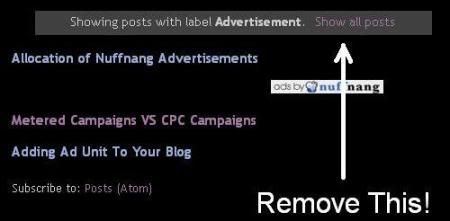
    Remove "Showing post with label...show all posts"

    How to remove "Showing post with label...show all posts" on Blogger blog?


    Here's how:


    blogger remove this


    Log in to your Blogger account, Back-up your template, then go to:


    Dashboard > Layout > Edit HTML > check Expand Widget Templates box


    Find the following part of code:


    <b:includable id='status-message'>

    <b:if cond='data:navMessage'>

    <div class='status-msg-wrap'>

    <div class='status-msg-body'>

    <data:navMessage/>

    </div>

    <div class='status-msg-border'>

    <div class='status-msg-bg'>


    <div class='status-msg-hidden'><data:navMessage/></div>

    </div>

    </div>

    </div>

    <div style='clear: both;'/>

    </b:if>

    </b:includable>


    Then REPLACE it with:


    <b:includable id='status-message'>

    <b:if cond='data:navMessage'>


    <div>

    </div>

    <div style='clear: both;'/>

    </b:if>

    </b:includable>


    Save.


    Now open your blog and view any label.

    Rabu, 15 Juni 2011

    Show Random Posts with Thumbnail Display


    Hi, Bloggers! Are you ready to learn a new tricks? OK, now I'm gonna share you about Show Random Posts with Thumbnail. Maybe, this trick almost similar with previous trick, How to Add Labels with Thumbnail. But, in these trick, you just need little code. Need a DEMO? You can see the demo at the bottom of my blog. Now, if you want to add Show Random Posts with Thumbnail Display into your blog, just follow the steps below.

    1. Log in to your blogger account
    2. Go to Design --> Page Elements --> Add Gadget
    3. Then, add the code below

    <style text-type="CSS">
    img.label_thumb {
    float:left;
    padding:3px;
    background:#CCC;
    border:1px solid #A4A4A4;
    width:100px;
    height:75px;
    margin-right:10px;
    margin-top:10px }

    img.label_thumb:hover {
    opacity:0.8;
    filter:alpha(opacity=80);
    -moz-opacity:0.80;
    -khtml-opacity:0.8 }
    </style>

    <script type='text/javascript'>
    //<![CDATA[
    function labelthumbs(json){document.write('<div>');for(var i=0;i<numposts;i++){var entry=json.feed.entry[i];var posttitle=entry.title.$t;var posturl;if(i==json.feed.entry.length)break;for(var k=0;k<entry.link.length;k++){if(entry.link[k].rel=='replies'&&entry.link[k].type=='text/html'){var commenttext=entry.link[k].title;var commenturl=entry.link[k].href;}
    if(entry.link[k].rel=='alternate'){posturl=entry.link[k].href;break;}}
    var thumburl;try{thumburl=entry.media$thumbnail.url;}catch(error)
    {s=entry.content.$t;a=s.indexOf("<img");b=s.indexOf("src=\"",a);c=s.indexOf("\"",b+5);d=s.substr(b+5,c-b-5);if((a!=-1)&&(b!=-1)&&(c!=-1)&&(d!="")){thumburl=d;}
    else thumburl='';}
    document.write('<a href="'+posturl+'" title="'+posttitle+'"><img class="label_thumb" src="'+thumburl+'"/></a>');
    if(i!=(numposts-1))
    document.write('');}
    document.write('</div>');}
    //]]>
    </script>

    <script type='text/javascript'>var numposts = 4;</script>
    <script type="text/javascript" src="/feeds/posts/default/-/Hacks?orderby=updated&alt=json-in-script&callback=labelthumbs"></script>

    => The blue code is the number of the post that you want to show
    => The green code is the name of the blog label (The alphabet must be same)

    4. Then, click SAVE TEMPLATE

    Easier and Faster to Edit Blogger Favicon

    Hi, friends! Did you know? Blogger just release a new feature. What is that? Favicon Editor! Yups.. the function is for Easier and Faster to Edit Blogger Favicon. I think it's very nice feature. We just need little steps to edit our blog favicon. But, where is Favicon Editor place? You can find on Design --> Page Elements.


    Then, how to add the favicon? You just click "Edit" on Favicon menu. The, you can upload you favicon file (a file with .ico). Just share some tips, you can get a file with .ico in http://www.favicongenerator.com/. Firstly, upload you picture, and FaviconGenerator will be generate into .ico. So, we just waiting what is Blogger next update...

    Comment numbering in Blogger [Update]

     The trick will auto mark number of comments


    Example:  


    1. Login to blogger, then choose "Layout --> Edit HTML". Don't forget to backup your template first.
    2. Check the "Expand Widget Templates" box.

    3. Add this CSS code before  ]]></b:skin>
    .numberingcomments{
    float: right;
    display: block;
    width: 50px;
    margin-right: 5px;
    margin-top: -35px;
    text-align: right;
    font-family: Arial,Helvetica,Sans-Serif;
    font-size: 15px;
    font-weight: bold;
    }

    4. Find this code :
    <dl id='comments-block'>
    <b:loop values='data:post.comments' var='comment'>
    <dt class='comment-author' expr:id='"comment-" + data:comment.id'>
    <a expr:name='"comment-" + data:comment.id'/>
    <b:if cond='data:comment.authorUrl'>
    <a expr:href='data:comment.authorUrl' rel='nofollow'><data:comment.author/></a>
    <b:else/>
    <data:comment.author/>
    </b:if>
    <data:commentPostedByMsg/>
    </dt>
    <dd class='comment-body'>
    <b:if cond='data:comment.isDeleted'>
    <span class='deleted-comment'><data:comment.body/></span>
    <b:else/>
    <p><data:comment.body/></p>
    </b:if>
    </dd>
    <dd class='comment-footer'>
    <span class='comment-timestamp'>
    <a expr:href='"#comment-" + data:comment.id' title='comment permalink'>
    <data:comment.timestamp/>
    </a>
    <b:include data='comment' name='commentDeleteIcon'/>
    </span>
    </dd>
    </b:loop>
    </dl>

    And replace all by:
    <dl id='comments-block'>

    <script type='text/javascript'>
    var CommentsCounter=0;
    </script>

    <b:loop values='data:post.comments' var='comment'>

    <div class='' expr:id='data:comment.id'>

    <dt expr:class='"comment-author " + data:comment.authorClass' expr:id='data:comment.anchorName'>
    <a expr:name='data:comment.anchorName'/>
    <b:if cond='data:comment.authorUrl'>
    <a expr:href='data:comment.authorUrl'><data:comment.author/></a>
    <b:else/>
    <data:comment.author/>
    </b:if>
    <data:commentPostedByMsg/>

    <span class='comment-number'>
    <a expr:href='"#comment-" + data:comment.id' title='Comment Link'>

    <script type='text/javascript'>
    CommentsCounter=CommentsCounter+1; document.write(CommentsCounter)
    </script>

    </a>
    </span>

    </dt>
    <dd class='comment-body'>
    <b:if cond='data:comment.isDeleted'>
    <span class='deleted-comment'><data:comment.body/></span>
    <b:else/>
    <p><data:comment.body/></p>
    </b:if>
    </dd>
    <dd class='comment-footer'>
    <span class='comment-timestamp'>
    <a expr:href='data:comment.url' title='comment permalink'>
    <data:comment.timestamp/>
    </a>
    <b:include data='comment' name='commentDeleteIcon'/>
    </span>
    </dd>

    </div>

    </b:loop>
    </dl>


    8. Save template.

    Fandung

    Recent posts update fast load


    This is new version of Recent posts

    1. Login to blogger, then choose "Layout --> Edit HTML". Don't forget to backup your template first.
    2. Check the "Expand Widget Templates" box.

    3. Find below code


     function removeHtmlTag(strx,chop){
    var s = strx.split("<");
    for(var i=0;i<s.length;i++){
    if(s[i].indexOf(">")!=-1){
    s[i] = s[i].substring(s[i].indexOf(">")+1,s[i].length);
    }
    }
    s = s.join("");
    s = s.substring(0,chop-1);
    return s;

    }


    And replace by this code
    function removeHtmlTag(s,max){
    s=s.replace(/<br.*?>/ig, ' ');
    return s.replace(/<.*?>/ig, '').split(/\s+/).slice(0,max-1).join(' ')
    }


    Now you have to change the value of sumaryPost
    Example: summaryPost = 30;
    Fandung[dot]com

    Selasa, 14 Juni 2011

    Highlight Author Comment in Blogspot

    This trick is to give a Highlight Author Comment . This will make the blog's owner comments looks different from the visitors comments. It's very usefull and interesting blogger hack tips. You can see the example in my blog. Here is what to do to make a "Highlight Author Comment" effect in Blogspot.


    1. Login to blogger, then choose "Layout --> Edit HTML". Don't forget to backup your template first.
    2. Check the "Expand Widget Templates" box.
    3. Copy this script and put it before ]]></b:skin> or copy to your CSS area.


    .comment-body-author {
    background: #E6E6E6; /* Background color*/
    color: #000; /* Text color*/
    border-top: 1px dotted #223344;border-bottom: 1px dotted #223344;border-left: 1px dotted #223344;border-right: 1px dotted #223344;
    margin:0;
    padding:0 0 0 20px; /* Posotion*/
    }

    4. Then find this code:


    <dl id='comments-block'>
    <b:loop values='data:post.comments' var='comment'>
    <dt class='comment-author' expr:id='"comment-" + data:comment.id'>
    <a expr:name='"comment-" + data:comment.id'/>
    <b:if cond='data:comment.authorUrl'>
    <a expr:href='data:comment.authorUrl' rel='nofollow'><data:comment.author/></a>
    <b:else/>
    <data:comment.author/>
    </b:if>
    said...
    </dt>

    <b:if cond='data:comment.author == data:post.author'>
    <dd class='comment-body-author'>
    <p><data:comment.body/></p>
    </dd>
    <b:else/>

    <dd class='comment-body'>
    <b:if cond='data:comment.isDeleted'>
    <span class='deleted-comment'><data:comment.body/></span>
    <b:else/>
    <p><data:comment.body/></p>
    </b:if>
    </dd>

    </b:if>

    <dd class='comment-footer'>
    <span class='comment-timestamp'>
    <a expr:href='"#comment-" + data:comment.id' title='comment permalink'>
    <data:comment.timestamp/>
    </a>
    <b:include data='comment' name='commentDeleteIcon'/>
    </span>
    </dd>
    </b:loop>
    </dl>


    5. The red color text is the code that you have to add to your script. The position must be right.
    6. And then save your template.

    * You have to login into your blogger account before to give comments.

    Trick Blog

    New home page for the new AdSense interface

    We’ll now be showing you earnings for today, yesterday, this month so far, and last month as well as any unpaid finalized earnings and most recent payment information. Important alerts will appear in a bar at the top to make sure you don’t miss anything critical.
    New home page for the new AdSense interface

    We’re still working toward more improvements based on comments we’ve heard, including the ability to view your top channels from the home page. Stay tuned for many more features that you've been asking for! Please continue to send us your feedback on the new interface by joining the conversation in our forum or through the ‘Report issue’ link in the upper corner of your account.

    New home page for the new AdSense interface

    How integrating new ad sizes helped CareerPlanner.com increase revenue by 165%

    How integrating new ad sizes helped CareerPlanner.com increase revenue by 165%  In 1997, CareerPlanner.com founder Michael Robinson decided to pursue his passion of helping people discover their true career directions. He initially wanted to go into high schools and work directly with students, but decided instead to start a website so that he could keep his day job. Today, CareerPlanner.com helps high school students, college students, and adults alike discover their optimal career paths and learn how to start careers or make career changes.

    In 2007, Michael and CareerPlanner.com's top graphic designer realized that 2.5 million visitors per year weren't purchasing any CareerPlanner.com products. "These visitors were clearly looking for something, but it was not anything we offered," says Michael, so they decided to give AdSense a try. Today, AdSense is on over 95% of CareerPlanner.com’s pages and the site receives over 5.5 million visitors a year. The revenue from Google AdSense now helps fund CareerPlanner.com’s Research and Development efforts, IT expansion, as well as special marketing projects that they always wanted to try but could never afford.

    How integrating new ad sizes helped CareerPlanner.com increase revenue by 165%  Getting more out of AdSense

    Following advice from the AdSense team, Michael decided to update his AdSense ad units with the goal of increasing performance. Instead of the three 120 x 600 skyscrapers that had been running one on top another down the right side of each page, Michael began running one 160x600 wide skyscraper on the left column, one 300 x 250 medium rectangle in the center, integrated into his content below the fold, and one 160 x 600 wide skyscraper on the right column. Michael also changed the color scheme of the ad units to match the color scheme of his webpages. Initially, Michael made these changes to 75% of his pages. Within one month, his AdSense for content revenue increased 80%.

    The initial revenue growth CareerPlanner.com saw in the first month inspired Michael to take the time to implement the same changes on more of his pages. Today, Michael has optimized 99% of his pages and increased his AdSense for content revenue by 165%.
    How integrating new ad sizes helped CareerPlanner.com increase revenue by 165%  "The best news," says Michael, "is that since we have made the optimization changes, our Google AdSense revenue has been setting new records every month."

    Sign in to your account to upgrade your ad units like CareerPlanner.com today!


    All about Dynamic Views for Readers

    Blogger currently offers five dynamic views for its public blogs. These views are only accessible if allowed for by the blog author.

  • Flipcard: available at [blogURL]/view/flipcard

  • Mosaic: available at [blogURL]/view/mosaic

  • Sidebar: available at [blogURL]/view/sidebar

  • Snapshot: available at [blogURL]/view/snapshot

  • Timeslide: available at [blogURL]/view/timeslide

  • As an example, the URL for accessing the Sidebar view for Blogger Buzz would be http://buzz.blogspot.com/view/sidebar.
    These views require modern browsers such as Internet Explorer 8+, Firefox 3.5+, Chrome or Safari. Many elements of these views will not work should you have an older browser.
    In all views, search is available in the upper right hand corner. Clicking on the ">" arrow in the very top left of the header bar will slide the header bar across and allow you to choose different views for the current blog as well as type in a new blog URL.
    There is also a feedback link for each view.

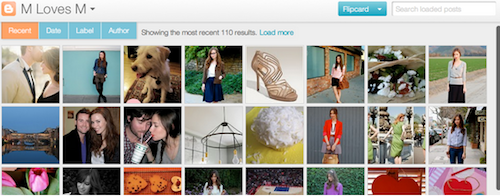
    Flipcard

    flipcard
    • Mouse over any of the cards to see the post title and comment count. As you scroll down, additional posts will continue to load.
    • Click on a card to see the post in full view. You can navigate through the posts using J (older post) and K (newer post) or the arrow keys. Hit escape or click Back to all posts to return to the Flipcard view.
    • In the upper left, click to sort by Date, Author and Category.

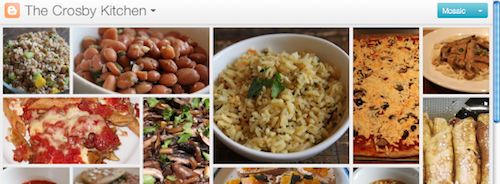
    Mosaic

    mosaic
    • Clicking on an individual tile will expand that post to the full width of the view, and clicking again will collapse the post back into its original position.
    • The exact position of the tiles is randomly determined each time the blog loads, but they will appear chronologically from top left to bottom right.
    • Once a tile is expanded, you can page down by using the "up" and "down" arrow keys as well as J and K.
    • This view is optimized for the tablet viewing, and supports screen rotation.

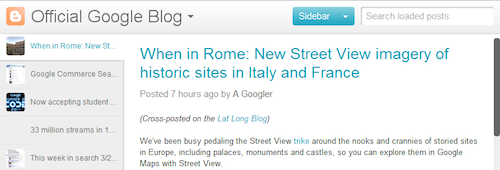
    Sidebar

    sidebar
    • Optimized for quick reading and browsing.
    • Left sidebar is list of chronological posts, with comment counts and thumbnails for individual posts.
    • J and K arrow keys will navigate through the posts, and comments can be displayed on the same page by clicking the Show link.

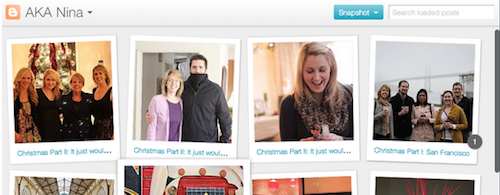
    Snapshot

    snapshot
    • This view will display only the posts which have images.
    • Clicking through any photo will display the full post page, with naviagtion links at the bottom for Newer and Older posts
    • Mousing over any photo will display a post snippet

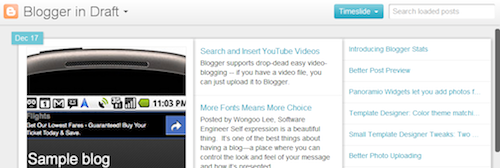
    Timeslide

    timeslide
    • This view breaks the blog content down into three different areas:
      • Left column: Enlarged picture with a post snippet, title, and snipppet displayed in chronological order
      • Middle column: Displays just the post title and snippet
      • Right column: Displays just the individual post titles
    • When searching for posts in this view, the results will be highlighted.
    For more information, please take a look at our article on Dynamic Views for Authors.

    Make More From Adsense: Tips For Small-Time Bloggers

    This topic has been covered by several big-time bloggers, teaching the world how to make $10,000 in one month from blogging. This article won't and can't claim such success. This is mainly written for the small-time blogger, just starting out and seeking to make a little more money on their adsense accounts while they learn the ropes in the world of blogging.

    These tips I'm about to give you have been recommended directly by Google. They're taken from an hour-long Google video tutorial I watched. I've condensed the points down into the following basics.

    1. Where To Place Your Ads


    ~Ads perform better when placed at the top of the page, above the fold. This basically means that anyone who arrives on your page can see the ad before they scroll down to read your article. I must admit that I don't like arriving on a page and not being able to see anything but ads above the fold. You know the ones where it looks like there is nothing else on the site but ads?
    There is of course, a happy medium. There is an ad panel at the top of this page but when you arrived here you could read some of the article before scrolling down.

    ~Place your ads near to your articles. These have proven to work better because they're in plain view. If your blog allows it, you can even have wrap-around ads where they are placed on the top left, and the articles wrap around them on the right, then continue below. Unfortunately, Blogger does not allow this at this present time.

    ~Place your ads at the bottom of your articles. Only some Blogger templates allow this. However, many other templates are compatible with this placement. When readers finish your article, an ad at the bottom is asking for a response or action. Based on your topic, this is a great area for conversion.

    ~Place your ads near your scroll down button. Ads are less likely to be missed in this position.

    2. How To Make Your Ads Perform Better


    ~Use a unit that's as big as possible. Of course don't take over your entire page with ads, but don't go for the tiny ones either. You may want to keep the ads out of the way so your blog looks neater, but this defeats the purpose. If this is important to you, you might as well remove them altogether. If you don't want people to notice them, then this is just what will happen. No one will notice them, so no one will click on them. This means no revenue for you.

    ~Enable text and image ads. Sometimes the ads will be just text and at other times they'll be changed to image ads. When you set up (or edit) your Adsense account, choose this option because it means more advertisers are able to compete for a space on your blog (those who have only text ads and others who mainly use image ones). More competition means more revenue for you.

    ~ Go lightly on filtering. When you set up your Adsense account you would've been asked if you wanted to filter (block) ads. If you are filtering, do this very sparingly.

    ~Describe and promote. A lot of us small-time bloggers sign up to Adsense because we hear it's a good thing to do. Then we chuck the ad units on our sites and wait for the advertisers to come to us, forgetting that there are lots we can do to make them work for us. Go back to your Adsense account and make sure you've described your blog. Promote yourself so that advertisers can see your site is actively inviting ads. Showing them what your site is about makes it easy for them to decide to pick yours instead of someone else's. If you've got a sub-section, describe that too. Put your blog out there!

    3. Know What Works Well For Your Individual Site


    All blogs are different. Not because the picture ad at the bottom of your article works well for you, it means it will work well for me. Track your successes so that you can stay with them or create them elsewhere.

    ~Check your channels. Go into your Adsense account. Adsense Setup. Channels. Set up and name your channels if you haven't already done so. This will enable you to track how each ad on your page is doing. Armed with this information, you can make it work better for your site, earning you more money.

    4. Have You Done These
    ~Your link units are up and running
    ~They're in the hot spots where they can be seen by visitors
    ~You've done everything to enable the performance of your ad units
    ~You have set up Channels for your Google Adsense ads
    ~You have enabled Adsense for Search on your blog. (This link goes to my article which shows you step-by-step, how to put a working Adsense For Search on your blog and monetise it).


    If you have any questions about this article let me know. If you liked this article and think it's useful, please share it on any of the following social networking sites. Thank you.

    Earn $10 per day with Adsense

    You can earn $10 or higher per day in your blog by adsense ads publishing. For this you have to follow a tricks.

    Required:

    • A unique content blog (Read how to write/find unique content)
    • Blog should be in English
    • More than 100 nice post (150 for general post)
    • Friendly

    If you have the above requirement then you are ready for earn $10×30=$300 or more. Do the following steps...

    Steps To Do:
    • Go http://www.ezinearticles.com (PR 6)
    • Write articles that are perfect for your blog niche
    • Post everyday 5 articles and give your link
    • Then you will get 100 or more visitors in your site
    • Place 336×280 large rectangle ads where your article start and also place in your 160×600 wide skyscraper format ads in top left or top right side
    • If you have good article you will get more than 10 click
    • If you didn't get enough visitor keep posting your article
    • It also help you for SEO

    Google AdSense Tools , Tips and Resources

    Google AdSense is a simple and low-risk way for publishers to quickly monetize their content. The pay-per-click ad system has created an opportunity for anyone to instantly have advertising on their website, without the hassle of having to actively sell ad space. AdSense makes up a good portion of the advertising revenue for many websites, and other websites may use AdSense to earn the bulk of their revenues. Either way, AdSense is an excellent system for monetizing your content.
    In this post we present an ultimate collection of resources, tools and tips to help you make the most out of Google AdSense. Among other things, this post covers various Google AdSense tools, Firefox-extensions, WordPress-plugins and related resources.
    Please feel free to suggest related tools in the comments to this post. You may also be interested in our post Google AdSense: Facts, FAQs and Tools that was published two years ago.

    1. Google AdSense Tools

    iPhone AdSense Statistics Application
    SenseApp is a program that lets you track your Google Adsense earnings on your Apple iPhone.
    Iphone in 100% Google AdSense: Tools, Tips and Resources
    AdSense Earnings Tool
    Free and fast tool to monitor adsense earnings in realtime. This tool posts all the correct post fields to Googles universal Account Services login and collects information about your earnings. You’ll able to see today, yesterday, this month and since last payment earnings. You don’t need to log in to Google anymore.
    Ads2 in 100% Google AdSense: Tools, Tips and Resources
    Google AdSense Toolbox
    Type any web page URL (e.g. cnn.com) or keywords (e.g. web development), select a country (optional) and hit Enter to see the latest Google Ads that are contextual and geo-targeted.
    Google AdSense Preview Tool
    an addition to the right-click menu for Windows Internet Explorer 6.x, allowing you to preview the ads that may show on any webpage. With just a few clicks, you can see what ads may appear on your new webpages, or make an educated decision on whether to add AdSense to your existing site pages.
    Google Search-Based Keyword Tool
    The search-based keyword tool allows you to find high-paying keywords to target, based on the domain name you specify.
    Search-based-kw-tool in 100% Google AdSense: Tools, Tips and Resources
    Google Traffic Estimator
    The Google Traffic Estimator is an easy way to determine the search volume of certain keywords, and it shows related keywords and their volumes as well.
    SpyFu
    SpyFu allows you to look up any website and see how much it is spending on AdSense, how it ranks for each keyword, and which keywords it buys. The tool is quite useful for researching competitors.
    Spyfu in 100% Google AdSense: Tools, Tips and Resources
    adsblacklist
    Identify and block low-paying advertisers and increase ROI with AdSense.

    2. Google AdSense Online Tools

    Contextual Ads Preview/Comparison Tool
    This comparison tools comes in handy when you compare AdSense ads to those of other advertisement services (Chitika, Yahoo). You also have the ability to customize the colors and view what ads a certain URL would be likely to display.
    Col in 100% Google AdSense: Tools, Tips and Resources
    Google AdSense Calculator
    This AdSense Calculator is designed to help you to predict changes in your earnings depending on improvement (or deterioration) of Page Impressions, Click Through Rate and Cost Per Click. You can download further calculators here.
    Calc in 100% Google AdSense: Tools, Tips and Resources
    WordTracker
    During the search, people use different keywords. Using this tool, you can find the most effective words before deciding what content to include on your page. Not free, but the free trial is available.
    Traffic Estimator Sandbox
    To use this tool, you need an AdWords account. This traffic estimator helps you to figure out what keywords result in the highest paying AdSense ads (more details on uphook).
    Est in 100% Google AdSense: Tools, Tips and Resources
    Pubmatic
    While Pubmatic isn’t strictly an AdSense tool, it will definitely help you earn more money from your website by optimizing your ads. With each page view, Pubmatic determines whether showing an AdSense ad or an ad from a different network would be best, based on the CPM.
    Pubm in 100% Google AdSense: Tools, Tips and Resources
    AlterNut Ad
    Instead of earning nothing from the PSA ads that Google fills the page with when it has no ads to show, earn a set fee by giving AlterNut Ad your unused PSA ads.

    3. Google AdSense Firefox Extensions

    AdSense Notifier
    This extension displays your AdSense earnings in the status bar.
    AdSense Preview
    Check what Google ads would be displayed if they were shown on a particular page with this preview tool.
    Ff in 100% Google AdSense: Tools, Tips and Resources
    Money Quake
    Money Quake allows you to see your real-time earnings for many popular advertising programs, including AdSense.
    Quake in 100% Google AdSense: Tools, Tips and Resources
    GraphSense
    GraphSense gives you a visual look at your AdSense reports by adding graphs to the interface. As of this post, the extension is still classified as “experimental,” so you’ll have to log in to Mozilla to install it.
    Graphsense in 100% Google AdSense: Tools, Tips and Resources

    4. Official AdSense Resources

    Google has provided some official tools and resources to help publishers get started with AdSense.
    Google AdSense Help Center
    A database of questions and answers about the AdSense program.
    Help in 100% Google AdSense: Tools, Tips and Resources
    Inside AdSense Blog
    The official AdSense blog. Find news, tips and other features about the ad system here.
    AdSense Community Forum
    Have an AdSense question? Ask a community of publishers and the AdSense team.
    Official Optimization Tips
    A collection of tips provided by the AdSense team.
    Official AdSense Channel on YouTube
    Instructional videos and interviews by successful AdSense publishers.
    Interest-based advertising with Google AdSense
    Just recently Google announced the launch of interest-based advertising. This help section addresses the new mechanism and explains how you can benefit from it.

    5. Getting Started with AdSense

    Because of the popularity of AdSense, many so-called “experts” out there try to give “inside information” or sell their secrets in the form of ebooks. If you’re truly a beginner to AdSense, use the official AdSense help database that Google provides.
    Here are some “getting started” articles by a few trusted authors.
    Problogger’s AdSense Tips for Bloggers
    Darren Rowse’s excellent eight-part series will get you well on your way to making money from AdSense.
    Adsense-tips-for-bloggers in 100% Google AdSense: Tools, Tips and Resources
    The Ultimate Beginner’s Guide to Effective AdSense Link Units Optimization
    A great rundown of the different types of link units and how they’re best used in a website layout.
    Ultimate-beginner S-guide in 100% Google AdSense: Tools, Tips and Resources
    Where Should I Place Google Ads on my Page?
    The Google AdSense team has made a helpful map showing the different regions of a website layout where AdSense units perform the best.

    6. Optimization Tips

    Like any ad system, AdSense can be optimized to generate more clicks and revenue. Here are some tips to help boost AdSense performance.
    Adsense Success Stories
    Several examples of websites that increased their earnings significantly with Adsense. The success stories talk a lot about ad optimization, etc.
    Google AdSense Tips
    Google Blogscoped provides an excellent collection of AdSense tips based on its experience with implementing Google ads.
    Google-blogscoped-adsense in 100% Google AdSense: Tools, Tips and Resources
    My top 5 tips for increasing adsense earnings (without increasing traffic)
    Experiment with color and position, use different adverts for different dates, use content targeting, referrals and take care of the SEO.
    Bina in 100% Google AdSense: Tools, Tips and Resources
    Eye-Tracking Studies by Jakob Nielsen
    Great eye-tracking examples that show where users’ eyes start and end up on a page.
    Eye in 100% Google AdSense: Tools, Tips and Resources
    Adsense Tips, Layout Optimization Tricks for Higher CTR
    A collection of excellent do’s and don’ts for new publishers, as well as advice for more advanced AdSense users.
    Rotate Google AdSense Ad Colors : Reduce Ad Blindness
    One of the many enemies of publishers who rely on ads is banner blindness. Rotating ad colors is a good way to combat banner blindness, resulting in more clicks on ads.
    Google AdSense Tips, Tricks and Secrets
    Popular SEO blogger Michael Gray has an extensive post on various AdSense tips and performance boosters.
    Adsense-tips-tricks-secrets in 100% Google AdSense: Tools, Tips and Resources
    How to Display Ads Only to Search Visitors
    Click-through ratios are much higher if you show your AdSense units only to visitors who were referred by search engines. Here’s an article on how to implement that functionality on your website.
    Using the Competitive Ad Filter to Increase AdSense Earnings
    Learn how to block made-for-AdSense websites as competitors, allowing only the best and most relevant ads to show on your units.
    100 Google AdSense Tips
    While this article is a few years old, it still has some very valuable tips on how to optimize Google AdSense. Perfect for the beginner.
    20+ Practical and Ethical Tips to Earn More Revenue from Google AdSense
    eTechBuzz shows us some useful and ethical AdSense tips.
    20-practical-tips in 100% Google AdSense: Tools, Tips and Resources
    Blogmitize!
    The Official AdSense Blog has a post on how to make the most money from your blog layout.
    Little Known ‘Boring’ Websites that Make Incredible Money with AdSense
    An article highlighting that nearly anyone with a niche website can make money from AdSense.

    7. AdSense WordPress Themes

    WordPress is the most popular blogging platform, so it’s no surprise that a few themes come AdSense-ready, with ad placements already determined.
    Pro Sense
    Prosense in 100% Google AdSense: Tools, Tips and Resources
    Get Some!
    CognoBlue
    Cognoblue in 100% Google AdSense: Tools, Tips and Resources
    TechBlue
    Techblue in 100% Google AdSense: Tools, Tips and Resources
    Elite Circle
    Amazing Grace
    Amazing-grace in 100% Google AdSense: Tools, Tips and Resources
    Amazing

    8. AdSense WordPress Plug-Ins

    If you want to integrate AdSense in your existing website, here are some plug-ins to help display your ads.
    AdSense Manager
    The AdSense Manager widget allows for the automatic creation of AdSense ad zones on your WordPress blog. The plug-in also supports other ad networks, such as YPN, AdBrite and Commission Junction.
    Adsense-manager in 100% Google AdSense: Tools, Tips and Resources
    Easy AdSenser
    Easy AdSenser is a feature-filled plug-in that allows you to easily insert AdSense into your posts and layout. It has an extremely user-friendly interface, with lots of features that make adding AdSense much easier than it is with other plug-ins.
    AdSense Revenue Sharing
    Share AdSense earnings with co-authors using the AdSense Revenue Sharing plug-in.
    Adsense-revenue-sharing in 100% Google AdSense: Tools, Tips and Resources
    All in One AdSense and YPN
    Use the All in One AdSense and YPN plug-in to automatically insert YPN and AdSense ads into your existing blog posts.
    AdSense Under Image
    If a post has an image, this plug-in automatically inserts an AdSense block under the image.
    AdSense Deluxe 2
    Another plug-in to automatically insert AdSense ad units into blog posts.
    Adsense-deluxe-2 in 100% Google AdSense: Tools, Tips and Resources
    Google AdSense for Feeds
    A simple plug-in that places AdSense in your blog’s feed.
    Ozh’ Who Sees Ads
    Determines what type of visitor will see ads on your website. This plug-in allows publishers to hide ads from regular visitors and show them only to search visitors.
    Who-sees-ads-wp25 in 100% Google AdSense: Tools, Tips and Resources

    9. AdSense Books

    If you’re looking for an entire collection of tips and advice on making the most out of AdSense, you might want to try a print book instead. Plenty of excellent AdSense articles are available online, but on the whole, it is easier to find more accurate information in print media. Here are some of the most popular books on AdSense.
    Google Advertising Tools: Cashing in with AdSense, AdWords and the Google APIs
    The AdSense Code
    Google AdSense Secrets
    The Google AdSense Millionaire

    10. AdSense Forums and Communities

    Webmaster World AdSense Forum
    The WMW forum is by far the best forum for getting expert advice on AdSense. A member of the Google AdSense team actually reviews all the threads and answers questions, so the information is legitimate.
    Wmw-forum in 100% Google AdSense: Tools, Tips and Resources
    Digital Point AdSense Forum
    Digital Point’s AdSense forum isn’t as strict as the Webmaster World forum, so there is a lot of engagement but less experienced users and less informed advice.
    Dig in 100% Google AdSense: Tools, Tips and Resources
    Jowl Comm’s AdSense Chat
    Joel in 100% Google AdSense: Tools, Tips and Resources
    SEOChat
    SEOChat doesn’t have an entire forum dedicated to Google AdSense, but it does have a thriving forum for affiliate marketing in which many AdSense topics come up on a regular basis.

    11. Those Against AdSense

    It’s always a good practice to hear the other side of the story when rounding up resources on a topic, especially one as controversial as AdSense. Many experts argue that AdSense isn’t the best choice for publishers to monetize their content. Here are a few articles that criticize AdSense.
    Dear AdSense, You Broke My Heart
    Problogger Darren Rowse’s open letter to AdSense about why he was disappointed in its decision to change the referral policy for publishers outside the US.
    Dear in 100% Google AdSense: Tools, Tips and Resources
    Have You Weaned Your Blog from AdSense Yet?
    A convincing argument for moving from AdSense’s cost-per-click structure to CPM ads and other affiliate programs.
    Why You Can’t Make Money Blogging
    Copyblogger’s Brian Clark provides some compelling reasons to ditch AdSense and sell products that solve real-world problems.
    Why-you-cant in 100% Google AdSense: Tools, Tips and Resources